
WordPress Maintenance
How to Update WordPress Safely in 2026: A Practical Maintenance Workflow
Updated
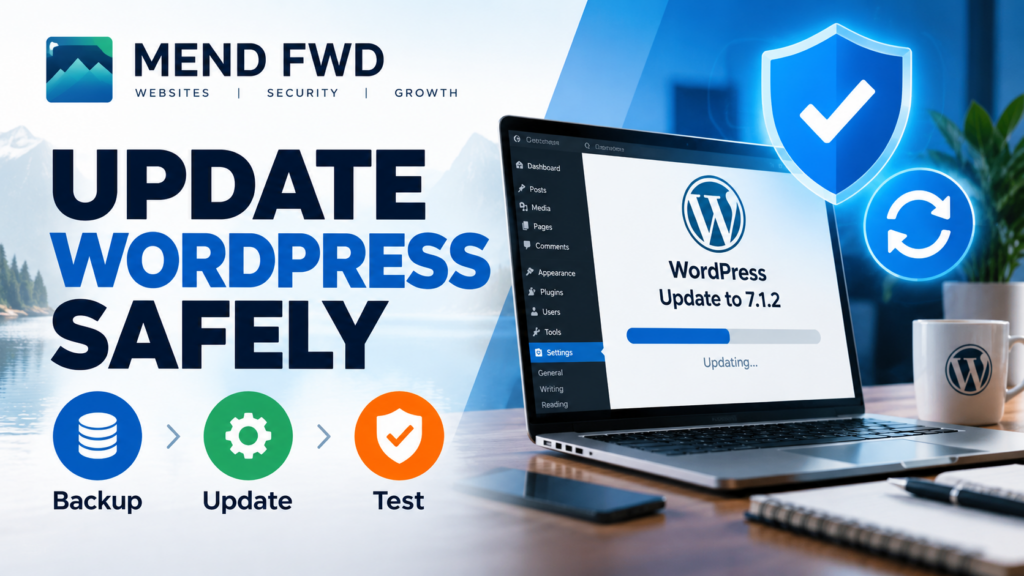
Keeping WordPress updated is one of the basic parts of maintaining a secure website. But clicking every available update at once is not always the safest way to do it.
A WordPress website is not a single piece of software. It usually combines WordPress core, a theme, several plugins, custom code, a database, caching and sometimes external services such as a CDN or analytics platform.
An update to one component can therefore affect another.
For a small business website, the goal should not simply be to install updates quickly. The goal is to keep the site current while having a clear way to detect problems and recover if something goes wrong.
This guide explains the maintenance workflow I use for that process.
Why WordPress Updates Matter
Updates are not only about new features.
They can include:
- security fixes;
- bug fixes;
- compatibility changes;
- performance improvements;
- browser and PHP compatibility updates.
This matters especially now. WordPress 7.1.2, released on September 22, 2026, includes a fix for a critical-severity security vulnerability. WordPress recommends updating sites immediately, which is a good reminder that keeping WordPress current is an important part of website security.
For a business website, leaving known vulnerabilities unpatched can create unnecessary risk.
But there is another side to the problem.
An update can occasionally expose compatibility problems between WordPress, plugins, themes or custom code.
That is why I treat updating as a small maintenance procedure rather than just pressing a button.
Step 1: Check What Is Going to Change
Before updating anything, I first look at the available updates.
I separate them into three groups:
- WordPress core;
- plugins;
- themes.
This makes troubleshooting much easier.
If ten components are updated simultaneously and the website stops working, it becomes harder to identify which change caused the problem.
For important sites, I prefer controlled changes instead.
I also check whether an update is a security release. Security updates normally deserve higher priority than ordinary feature updates.
Step 2: Create a Backup Before Changing the Site
A backup is the safety net of the entire process.
WordPress recommends backing up the website before updating. A useful WordPress backup needs more than just the database.
I want to be able to recover:
- the database;
- themes;
- plugins;
- uploads;
wp-config.php;- relevant server or configuration files.
The important question is not:
“Do I have backups?”
It is:
“Can I restore this website from the backup?”
A backup that has never been checked may provide a false sense of security.
For a business website, I also prefer keeping at least one backup outside the same server that hosts the live site.
If the server itself fails, a backup stored only on that server may not help.
Step 3: Record the Current State
Before an important update, I make a quick record of the current environment.
That can include:
- WordPress version;
- PHP version;
- active theme;
- active plugins and versions;
- important configuration changes.
For larger maintenance jobs, this information becomes extremely useful.
If something changes unexpectedly, I know what the working configuration looked like before the update.
Step 4: Test Important Updates Before Production
For a simple blog with a standard theme and a few well-maintained plugins, routine updates can often be straightforward.
A business website deserves more caution.
Major WordPress releases, PHP changes, important plugin upgrades or substantial theme changes are good candidates for testing on a staging copy first.
A staging environment is a separate copy of the website where changes can be tested without affecting visitors.
I check the parts of the site that actually matter to the business rather than only checking whether the homepage loads.
For example:
- navigation;
- contact forms;
- login;
- mobile layout;
- search;
- email delivery;
- important buttons;
- forms and validation;
- custom functionality.
For an online shop, the checklist would also include the cart, checkout and payment flow.
Step 5: Update in a Controlled Order
For routine maintenance, I avoid changing everything blindly in one operation.
A practical workflow is:
- make and verify the backup;
- apply the planned update;
- check the website;
- continue with the next group of updates;
- check again.
WordPress provides automatic update functionality for core, plugins and themes. Plugin and theme automatic updates can also be enabled or disabled individually.
Automatic updates are useful, but I do not consider them a replacement for maintenance.
The more important a component is to the operation of a website, the more carefully I want its updates handled.
Step 6: Clear Caches After the Update
Sometimes an update succeeds but the browser still displays an older version of the website.
This can happen because several cache layers may exist:
- browser cache;
- WordPress cache;
- server cache;
- CDN cache.
After an update, relevant caches may need to be cleared so visitors receive the current version of the website rather than stale cached content.
If a CDN such as Cloudflare is involved, I also consider whether its cache needs to be refreshed.
I do not automatically purge everything after every tiny change. The point is to understand which caching layer may be serving outdated content.
Step 7: Check the Public Website, Not Only wp-admin
Seeing an “update successful” message in the WordPress dashboard does not prove that the whole website works.
After updating, I open the site as a normal visitor.
I check at least:
- homepage;
- navigation;
- important pages;
- blog;
- forms;
- mobile layout;
- HTTPS;
- browser console for obvious errors.
I also test important links.
For a small business website, I pay particular attention to conversion paths.
If the website exists to generate enquiries, the contact form is more important than an obscure archive page.
Step 8: Check Security After the Update
An update should not accidentally change the site’s security posture.
After significant maintenance I check that:
- administrator login still works correctly;
- 2FA or passkeys still work;
- HTTPS remains active;
- security headers have not unexpectedly changed;
- backups continue to run;
- monitoring remains active;
- unnecessary administrator accounts have not appeared.
Security is not one setting. It is a collection of layers that need to continue working together.
For more details on protecting the WordPress administration area, see my guide to WordPress login security, 2FA and passkeys.
Step 9: Check Performance
Updates can also affect performance.
A new plugin version might load additional JavaScript or CSS. A theme update might change fonts or image handling. A caching configuration might be reset.
That does not mean every update makes a website slower.
It means performance should be measured rather than assumed.
After a significant update, I compare important pages and look for obvious changes in loading behaviour.
This creates a useful maintenance habit:
change → test → measure
rather than:
change → hope
What If an Update Breaks the Website?
The first priority is restoring service.
This is exactly why the backup was created before the update.
Depending on the problem, recovery might involve:
- rolling back the affected plugin or theme;
- restoring files;
- restoring the database;
- disabling a problematic plugin;
- reverting to the previous working configuration.
Once the website is working again, the cause can be investigated without leaving the production site broken.
Automatic Updates or Manual Updates?
I do not think there is one correct answer for every WordPress website.
Automatic security and maintenance updates are valuable because delaying security fixes creates its own risk.
But business-critical components deserve more control.
My preferred approach is therefore selective automation.
Low-risk, trusted components can often update automatically.
Major changes or components that directly affect important functionality can be tested first.
The decision should depend on the site, not on a universal rule.
A Simple WordPress Maintenance Checklist
For a small business website, my practical update routine is:
Before
Check available updates → create backup → verify recovery option → record current versions.
During
Apply controlled updates → avoid unnecessary simultaneous changes → watch for errors.
After
Clear relevant caches → test important pages → test forms → check mobile → verify security → check performance → confirm backups and monitoring still work.
This takes longer than clicking “Update all”.
But it also makes failures easier to identify and recover from.
Maintenance Is Part of Website Security
A secure WordPress website is not something that is configured once and then forgotten.
Software changes.
Plugins change.
Browsers change.
New vulnerabilities are discovered.
Business requirements change.
Regular maintenance connects security, reliability and performance.
That is why I treat backups, updates, testing and monitoring as one workflow rather than separate tasks.
For a small business, the objective is simple: keep the website current without turning every update into a risk.
Need Help With Your WordPress Website?
If your WordPress site needs maintenance, security checks, updates or troubleshooting, I can help keep it stable and up to date.
Need help with your WordPress website?
MEND FWD provides practical WordPress repair, maintenance and web development support for small businesses.